

When teams are distributed across different time zones, clarity is no longer a luxury; it’s a core operational requirement. Misunderstandings about processes can grind productivity to a halt, leading to rework, missed deadlines, and frustrated team members. This is where visual workflows become indispensable, transforming abstract processes into clear, shared roadmaps that everyone can follow, regardless of their location. A well-designed workflow diagram acts as a single source of truth, aligning remote and product teams on the exact steps needed to move from start to finish.
This article provides a comprehensive collection of examples of workflow diagrams specifically curated for modern teams. We move beyond basic definitions to give you a deep strategic analysis of each type, from simple flowcharts to complex BPMN and UML diagrams. You won't just see what they look like; you'll understand the tactical advantages of each and get actionable takeaways to implement them immediately.
Inside, you will find:
- Ten distinct types of workflow diagrams, each with a visual example and a breakdown of its core function.
- Strategic insights on when to use each diagram for maximum impact in product development, project management, and operational efficiency.
- Actionable checklists and mini-templates to help you start building your own diagrams without the guesswork.
- Special considerations and variations for making these diagrams work effectively for fully remote or hybrid teams.
Our goal is to equip you with the knowledge to select and create the right visual tool for any challenge your team faces. By mastering these diagrams, you can eliminate ambiguity, streamline collaboration, and build more efficient, transparent processes that empower your team to do their best work. Let's dive into the examples.
1. Flowchart
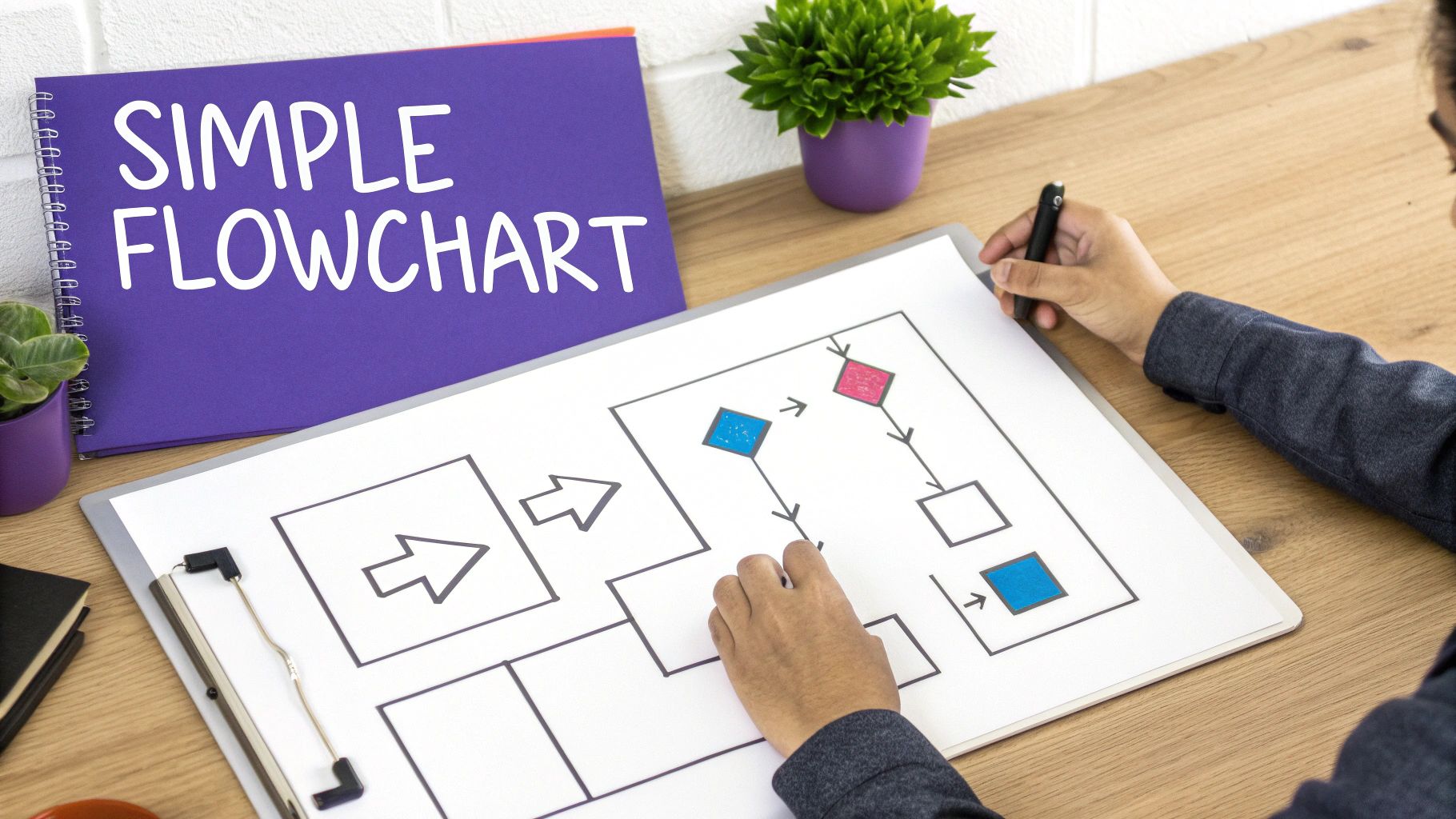
The flowchart is one of the most fundamental and universally recognized examples of workflow diagrams. It visually represents a process or workflow using a standardized set of symbols connected by arrows. Each symbol has a specific meaning: ovals for start/end points, rectangles for process steps, and diamonds for decision points. This simple, intuitive structure makes it a powerful tool for outlining sequences, clarifying logic, and identifying potential bottlenecks in any system.
When to Use a Flowchart
Flowcharts are incredibly versatile. Use one to document an existing process for training or analysis, design a new workflow from scratch, or troubleshoot a complex procedure like a software debugging sequence. They are ideal when you need to communicate a process with clear, binary decision points (yes/no) and a linear flow. For example, a customer service team can use a flowchart to map out call routing logic.
Creating Your Flowchart: A Mini-Template
- Define Scope: Clearly state the process's start and end points.
- Brainstorm Steps: List every action and decision involved. Don't worry about order yet.
- Draw the "Happy Path": Sequence the primary steps for a successful outcome using standard symbols (oval for start, rectangles for actions).
- Add Decision Points: Insert diamonds where choices occur. Draw branches for each possible outcome (e.g., "Yes" and "No").
- Connect and Refine: Use arrows to show the flow direction. Review with stakeholders to ensure accuracy and clarity.
Key Takeaway: The power of a flowchart lies in its simplicity. By standardizing symbols, you create a universal language that helps any team member, regardless of their technical background, understand a process at a glance.
Tips for Remote Collaboration
For distributed teams, use a digital whiteboarding tool like Miro or Mural. Assign different colors to team members for their contributions during a brainstorming session. Start with a pre-made flowchart template to save time and ensure everyone uses consistent symbols. This collaborative approach helps build shared ownership and quickly surfaces misunderstandings about the process.
2. Swimlane Diagram (Cross-Functional Flowchart)
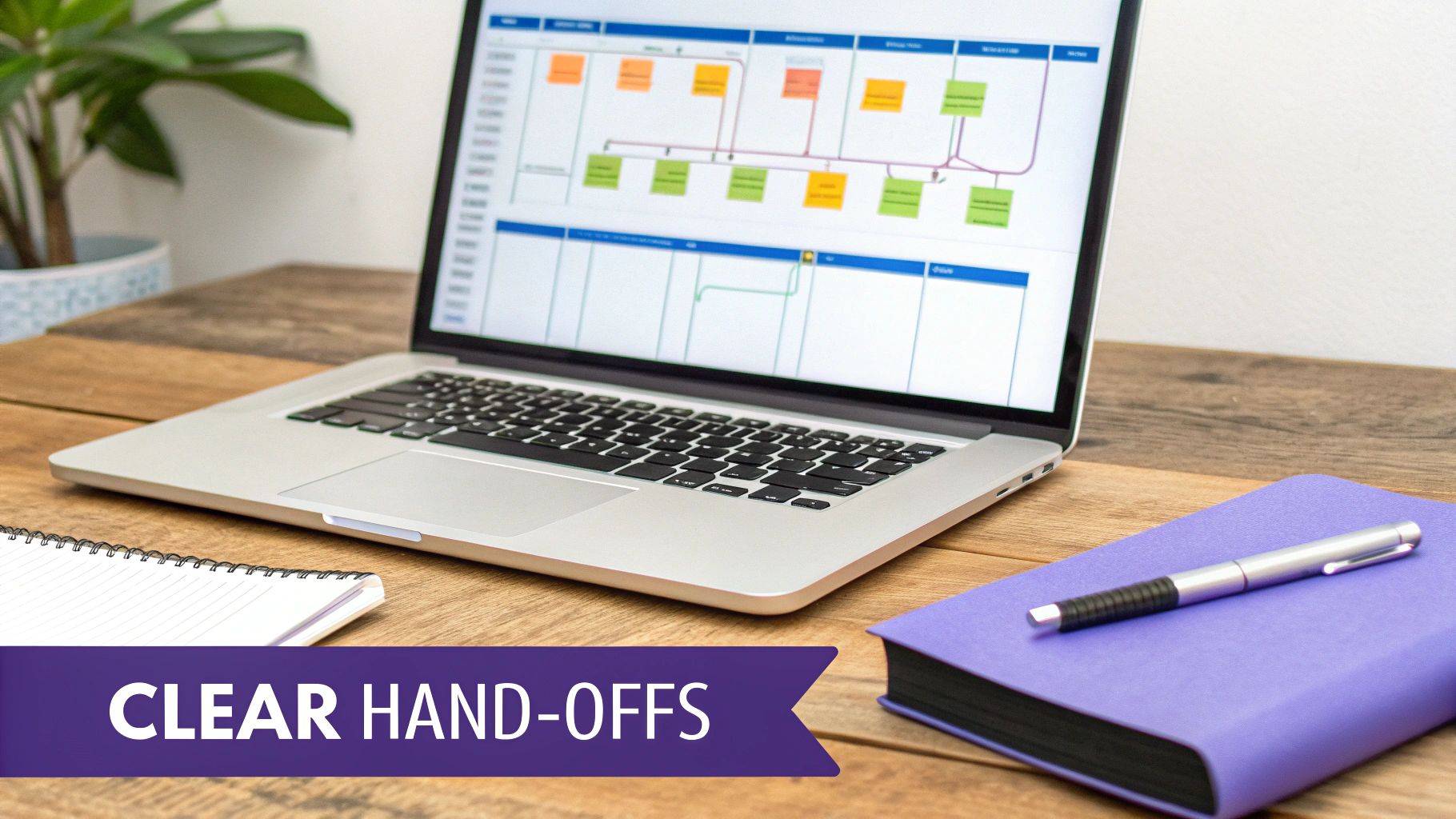
A swimlane diagram, also known as a cross-functional flowchart, enhances a standard flowchart by assigning responsibility for each step. It visually separates tasks into parallel "lanes," with each lane representing a different person, department, or system. This structure brilliantly clarifies who does what, making it an essential tool for mapping processes that span across multiple teams or functions, like an invoice approval process.
When to Use a Swimlane Diagram
Swimlane diagrams are perfect when a process involves multiple stakeholders and handoffs are critical. Use one to map a product development cycle from ideation (Product Team) to coding (Engineering) to release (DevOps), or to document an HR onboarding procedure involving HR, IT, and the hiring manager. They excel at highlighting bottlenecks, redundant tasks, and delays that occur when work moves from one lane to another.
Creating Your Swimlane Diagram: A Mini-Template
- Identify Participants: List all departments, roles, or systems involved in the process. Each one gets a lane.
- Draw the Lanes: Create parallel horizontal or vertical lanes on your canvas and label each one.
- Map the Process: Place process steps (rectangles, diamonds) into the corresponding lane of the person or team responsible for that action.
- Connect the Steps: Use arrows to show the flow of work. Pay close attention to arrows that cross from one lane to another, as these represent handoffs.
- Analyze and Optimize: Review the finished diagram to spot inefficiencies. Are there too many handoffs? Does one lane have a disproportionate amount of work?
Key Takeaway: The primary value of a swimlane diagram is accountability. By visually separating responsibilities, it removes ambiguity and makes it easy to see how individual contributions fit into the larger workflow, which is crucial for complex cross-functional projects.
Tips for Remote Collaboration
When creating a swimlane diagram with a remote team, use a collaborative tool that allows for real-time editing. Before the session, conduct a stakeholder mapping exercise to ensure all relevant participants are identified for each lane. You can learn more about stakeholder mapping to prepare effectively. During the session, have representatives from each lane walk through their steps to ensure the handoffs are captured accurately and from their perspective.
3. Data Flow Diagram (DFD)
A Data Flow Diagram (DFD) is a unique type of workflow diagram that visualizes how information moves through a system or process. Unlike a flowchart, which focuses on the sequence of operations, a DFD emphasizes the data itself. It maps out where data comes from (input), how it is processed, where it is stored, and where it goes (output), providing a bird's-eye view of a system’s information architecture.
When to Use a DFD
DFDs are essential for system analysis and design, particularly for software development and database management. Use a DFD when you need to understand or explain the data relationships within a complex system, like an e-commerce platform's order processing or a banking system's transaction flow. They are ideal for technical teams to map out system requirements before writing a single line of code.
Creating Your DFD: A Mini-Template
- Start with a Context Diagram (Level 0): Draw a single circle representing the entire system. Identify external entities (users, other systems) that interact with it and draw arrows showing the data they provide or receive.
- Identify Processes and Data Stores: List all major functions (processes) the system performs and where data is stored (data stores).
- Draw the Level 1 Diagram: Break down the Level 0 circle into its main processes. Connect these processes to each other, to external entities, and to data stores using labeled arrows that describe the data flow.
- Decompose to Lower Levels (Optional): For complex processes, create more detailed diagrams (Level 2, Level 3) that break them down further. Ensure the inputs and outputs remain consistent across levels.
- Review for Balance: Check that each level is a logical decomposition of the one above it. All data flows going into a higher-level process must be accounted for in its lower-level diagram.
Key Takeaway: A Data Flow Diagram abstracts away procedural logic to focus entirely on the movement of data. This makes it an invaluable tool for ensuring data integrity and identifying information bottlenecks in any system.
Tips for Remote Collaboration
When creating DFDs remotely, use a tool like Lucidchart or Gliffy that offers specific DFD shapes and validation rules. Start a session by collaboratively defining all external entities and data stores in a shared document. Use version control features to track changes as the team moves from a high-level context diagram to more detailed lower levels, ensuring everyone works from the most current version.
4. Business Process Model and Notation (BPMN)
Business Process Model and Notation (BPMN) is a standardized, graphical language designed to bridge the gap between business stakeholders and technical implementation teams. It uses a comprehensive and specific set of symbols to model complex business processes in a way that is clear to business analysts yet detailed enough for developers to execute. This shared language eliminates ambiguity in process design, from high-level strategic flows to detailed operational procedures.
When to Use BPMN
BPMN excels in scenarios requiring precision, standardization, and collaboration between different departments or roles. It's the ideal choice for mapping complex, multi-participant workflows like an end-to-end "order-to-cash" process, a customer complaint resolution system, or a financial closing procedure. Use it when you need to model not just the steps but also the events, gateways (decisions), and data flows that govern the process, especially if the goal is process automation.
Creating Your BPMN Diagram: A Mini-Template
- Identify the Process and Participants: Define the scope of the process and identify all key actors (e.g., customer, sales, finance).
- Create Pools and Swimlanes: Draw a "pool" for the overall process and "swimlanes" within it for each participant to show who is responsible for which actions.
- Map the Flow with Events and Activities: Use a circle for the start event. Add rounded rectangles for tasks (activities) and connect them with sequence flow arrows.
- Insert Gateways for Logic: Use diamonds to represent gateways where the path can split or merge. Clearly label the conditions for each path (e.g., "Approved" vs. "Rejected").
- Add End Events and Review: Conclude all paths with a final end event (a bolded circle). Validate the entire diagram with business process experts to confirm its accuracy.
Key Takeaway: BPMN's strength is its precision. By providing a standardized notation, it creates a single source of truth that aligns business intent with technical execution, making it essential for process improvement and automation initiatives.
Tips for Remote Collaboration
When creating BPMN diagrams with a distributed team, use a dedicated BPMN tool like Camunda Modeler or Bizagi. These tools enforce the notation rules, preventing errors. During a remote workshop, have one person act as the "scribe" who builds the diagram in real-time based on team discussion. Use the tool's collaboration features to leave comments directly on specific symbols to ask questions or suggest changes asynchronously.
5. UML Activity Diagram
Originating from the Unified Modeling Language (UML), an activity diagram is a behavioral diagram that graphically represents workflows of stepwise activities and actions. It is particularly useful for modeling the dynamic aspects of a system, showing the flow of control from one activity to another. Unlike a basic flowchart, it excels at depicting parallel or concurrent processes, making it one of the more powerful examples of workflow diagrams for complex system design.
When to Use a UML Activity Diagram
UML activity diagrams are essential in software engineering and system design. Use one to model business processes, visualize a use case, or describe the logic of a complex operation within your software. They are perfect for illustrating workflows with concurrent tasks, such as modeling microservice interactions or defining a game's event logic. For instance, you could map out how a mobile app handles simultaneous data fetching and user interface updates.
Creating Your UML Activity Diagram: A Mini-Template
- Identify the Scope: Define the process to be modeled, including its start (initial node) and end (final node) states.
- Add Swimlanes (Optional but Recommended): Create vertical or horizontal lanes to represent different actors, components, or departments (e.g., "User," "API," "Database").
- Map Activities and Actions: Place action nodes (rounded rectangles) within the appropriate swimlanes to represent tasks.
- Introduce Control Flow: Use arrows to connect actions. Add decision nodes (diamonds) for conditional logic and fork/join nodes (thick bars) for parallel activities.
- Refine and Validate: Add object flows to show data passing between activities. Review the diagram with the development team to ensure it accurately reflects the system's logic and aligns with the product development process steps.
Key Takeaway: The UML activity diagram’s strength is its ability to model concurrency. Using fork and join nodes allows you to clearly visualize how a system handles multiple operations at the same time, which is critical for modern software architecture.
Tips for Remote Collaboration
For distributed software teams, use a collaborative diagramming tool like Lucidchart or Gliffy, which offer dedicated UML shape libraries. During a virtual modeling session, use the swimlanes to assign ownership of different parts of the workflow to specific developers or sub-teams. This visual separation of concerns makes it easy to see who is responsible for which activities and facilitates focused, parallel discussions in breakout rooms.
6. Value Stream Map (VSM)
A Value Stream Map (VSM) is a lean-management tool that visualizes the entire flow of a product or service, from initial request to final delivery. Unlike simpler diagrams, a VSM distinguishes between value-added activities (what the customer cares about) and non-value-added activities (waste). It incorporates data like process time, lead time, and inventory levels to provide a quantitative analysis of efficiency and identify specific areas for improvement.
When to Use a Value Stream Map
VSM is the ideal choice when your goal is to optimize an entire system rather than just a single part of it. Use it to diagnose systemic waste in manufacturing production, streamline a software development lifecycle, or reduce patient wait times in a healthcare system. It's particularly powerful when you need to align cross-functional teams around a shared understanding of bottlenecks and prioritize high-impact improvements.
Creating Your Value Stream Map: A Mini-Template
- Select a Product Family: Choose one specific product or service to map.
- Map the Current State: Walk the actual process. Document every step, including material and information flows. Involve frontline workers to ensure accuracy.
- Gather Data: For each step, collect key metrics like cycle time, changeover time, and inventory levels.
- Identify Waste: Analyze the map to find the seven wastes of lean (e.g., waiting, overproduction, defects). Calculate the total lead time versus the value-added time.
- Design the Future State: Create a new map that visualizes an improved, leaner process. This becomes your implementation plan.
Key Takeaway: A VSM's power comes from its dual focus on material and information flow. By mapping how work is requested and managed alongside how it’s done, you uncover hidden delays and communication gaps that other diagrams miss.
Tips for Remote Collaboration
For distributed teams, a digital VSM in a tool like Lucidchart or Miro is essential. Use dedicated data fields to capture metrics consistently. Instead of a physical "gemba walk," use screen-sharing sessions with team members who perform the tasks to "walk" through their part of the digital process. Use asynchronous video recordings (like Loom) for team members to explain their steps, which can be linked directly to the map for context. Learn more by exploring various process improvement techniques.
7. Gantt Chart
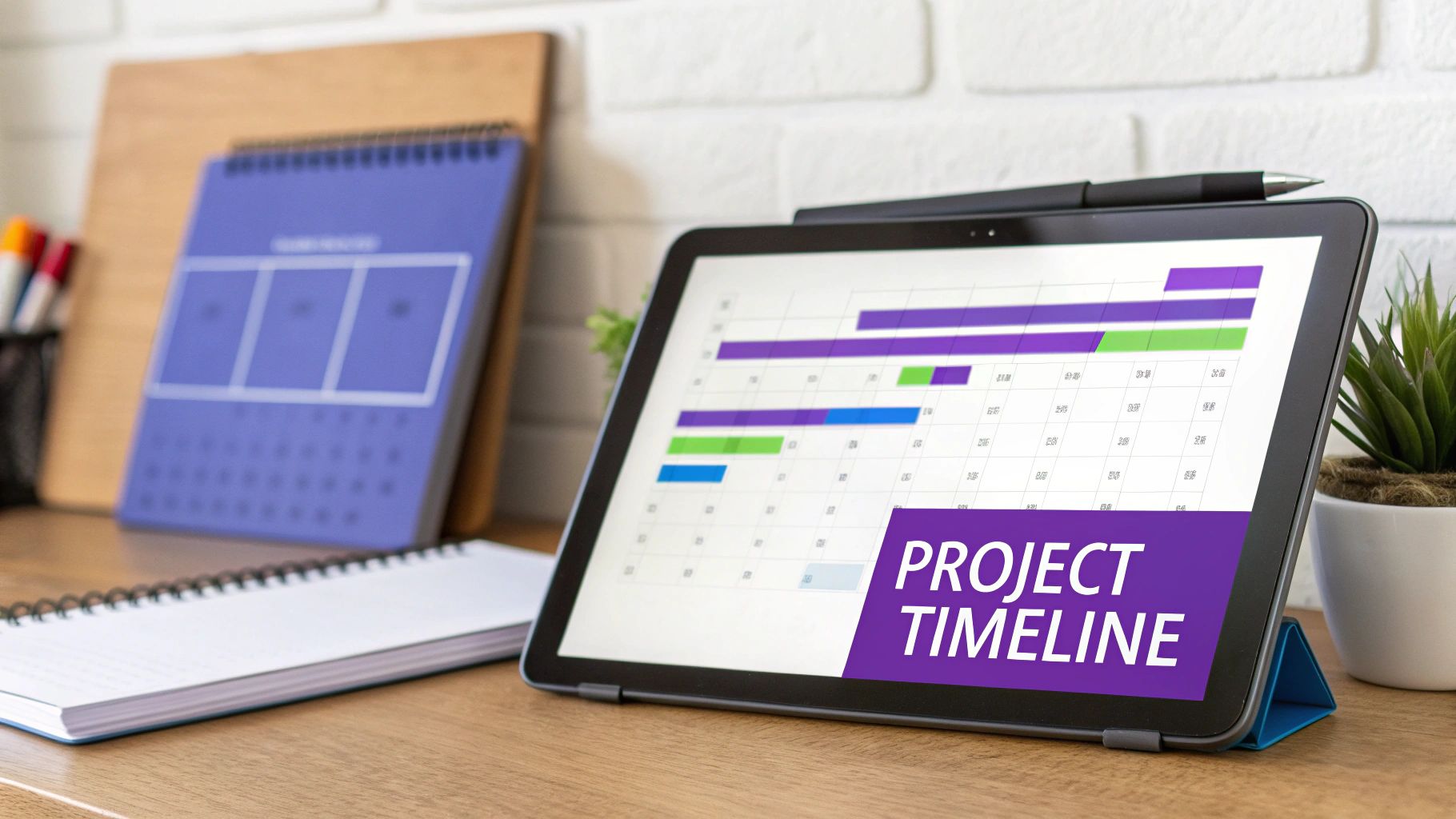
The Gantt chart is a powerful project management tool that visually tracks tasks against a timeline. It uses horizontal bars to represent the duration of individual tasks, showing start and end dates, dependencies between tasks, and overall project progress. This makes it one of the most effective examples of workflow diagrams for planning, scheduling, and managing complex projects with many moving parts.
When to Use a Gantt Chart
Gantt charts are indispensable for managing projects with clear timelines and dependencies. Use one for a software development sprint, a marketing campaign launch, or a construction project schedule. They are ideal when you need to visualize the entire project timeline, allocate resources effectively, and communicate deadlines and milestones to stakeholders. To fully leverage this powerful visual tool, it's beneficial to understand the advantages and disadvantages of Gantt Charts.
Creating Your Gantt Chart: A Mini-Template
- List All Tasks: Break down the project into every individual task required for completion.
- Identify Dependencies: Determine which tasks must be completed before others can begin (e.g., "Task B cannot start until Task A is finished").
- Estimate Durations: Assign a realistic time estimate to complete each task.
- Plot on a Timeline: Create a timeline and draw a horizontal bar for each task, reflecting its start date, end date, and duration. Link dependent tasks.
- Assign Resources & Monitor: Assign team members to each task and update the chart regularly to reflect actual progress against the plan.
Key Takeaway: The Gantt chart’s strength is its ability to make project timelines and dependencies crystal clear. It transforms a complex list of tasks into an easy-to-understand visual plan, helping teams stay aligned and proactive.
Tips for Remote Collaboration
For distributed teams, use project management software like Asana or Monday.com that has built-in Gantt chart functionality. This allows for real-time updates, so everyone sees the latest version of the project plan. Use features like comments and file attachments within each task to centralize communication and keep all relevant information in one place, avoiding scattered conversations across different platforms. For more tips, check out these project management best practices.
8. Sequence Diagram
A sequence diagram is a powerful interaction diagram that shows how objects or processes operate with one another and in what order. Originating from the Unified Modeling Language (UML), it visualizes the messages exchanged between participants (represented as vertical lifelines) over time. Time progresses down the page, making the sequence of interactions explicit and easy to follow. This makes it one of the most effective examples of workflow diagrams for mapping out system behavior.
When to Use a Sequence Diagram
Sequence diagrams are invaluable in software design and systems engineering. Use one to model the logic of a complex use case, understand the interactions in an API call, or visualize the steps in a user authentication flow. They are ideal when the timing and order of operations between multiple components are critical. For example, a development team can use a sequence diagram to map out a payment processing workflow, ensuring all system handoffs are correctly ordered.
Creating Your Sequence Diagram: A Mini-Template
- Identify Participants: List all the objects, systems, or actors involved in the interaction (e.g., User, Web Server, API, Database).
- Draw Lifelines: For each participant, draw a vertical dashed line down the page. Place the participant's name in a box at the top.
- Map the First Message: Draw a horizontal arrow from the initiating lifeline to the receiving lifeline. Label the arrow with the message or action (e.g.,
login(username, password)). - Add Subsequent Messages: Continue adding messages sequentially down the page, including return messages (often shown with a dashed arrow). Use activation bars (tall, thin rectangles on a lifeline) to show when a process is active.
- Review and Refine: Validate the sequence with technical stakeholders to confirm the logic, message names, and interaction order are accurate.
Key Takeaway: The primary strength of a sequence diagram is its focus on chronological order. It removes ambiguity about what happens when, making it an essential tool for designing and debugging complex system interactions.
Tips for Remote Collaboration
For distributed engineering teams, use a tool like PlantUML or Lucidchart that supports sequence diagram creation. In a collaborative session, have one person "drive" the diagramming tool while others provide input. Use the chat or a shared document to list the participants and messages before drawing. This ensures everyone agrees on the core components first, making the diagramming process faster and more focused.
9. Mind Map Workflow
A mind map workflow visualizes a process in a non-linear, radial format. It starts with a central concept or goal and branches out into related tasks, ideas, and sub-topics, mirroring the brain's natural way of associating thoughts. Unlike sequential diagrams, this approach is excellent for exploring complex systems, brainstorming new projects, and organizing information organically. It uses keywords, colors, and images to connect disparate elements into a cohesive whole.
When to Use a Mind Map Workflow
Mind maps are perfect for the initial stages of planning and ideation where creativity and flexibility are more important than rigid structure. Use one to brainstorm features for a new product, develop a content marketing strategy, or break down a complex problem into manageable parts. They excel when you need to see the "big picture" and understand the relationships between various components of a workflow without being constrained by a linear sequence.
Creating Your Mind Map Workflow: A Mini-Template
- Identify the Central Idea: Place your main goal or project title in the center of the page or digital canvas.
- Add Primary Branches: Create main branches radiating from the center for each major category or phase (e.g., "Research," "Design," "Launch").
- Branch Out with Sub-Topics: Add smaller branches to the main ones for specific tasks, ideas, or requirements. Use keywords and short phrases.
- Make Connections: Use colors, icons, and curved lines to link related ideas across different branches, highlighting dependencies or relationships.
- Refine and Organize: Review the map with your team. Rearrange branches and add details until the structure clearly reflects the project's scope.
Key Takeaway: A mind map workflow trades rigid linearity for creative freedom. It is an exceptional tool for collaborative brainstorming, helping teams generate and organize a high volume of ideas while visually connecting them to a central objective.
Tips for Remote Collaboration
For remote teams, a digital mind mapping tool like MindMeister or Coggle is essential. Start a session with a central topic and give everyone editing access to contribute ideas simultaneously. Use color-coding to assign ownership to different branches or to categorize types of tasks (e.g., green for marketing, blue for development). An asynchronous approach also works well; team members can add their thoughts over a day or two before coming together to organize the final map. To get the most out of your sessions, learn more about boosting creativity with mind maps.
10. State Machine Diagram
A state machine diagram is a type of workflow diagram that visualizes the behavior of a single object or system. It illustrates the different "states" an object can be in and the "transitions" between those states that are triggered by specific events. This diagram excels at modeling the dynamic lifecycle of an object, from creation to termination, and how it responds to internal or external stimuli. It is a core component of the Unified Modeling Language (UML).
When to Use a State Machine Diagram
Use a state machine diagram when you need to model the complex, event-driven behavior of a specific object or component within a system. It's perfect for mapping out an e-commerce order lifecycle (e.g., Pending -> Processed -> Shipped -> Delivered) or managing user session states in an application (e.g., Logged Out -> Authenticating -> Logged In -> Timed Out). It is essential for systems where an object's response to an event depends on its current state, like an ATM's transaction sequence.
Creating Your State Machine Diagram: A Mini-Template
- Identify the Object and Scope: Choose the single object or system whose lifecycle you want to model.
- Define All Possible States: Brainstorm and list every distinct state the object can be in. Include initial and final states.
- Map Transitions and Triggers: For each state, identify the events (triggers) that cause a transition to another state. Draw arrows from the origin state to the destination state and label them with the trigger.
- Add Guards and Actions: Specify any conditions (guards) that must be true for a transition to occur. Document any actions that happen upon entering or exiting a state.
- Review for Completeness: Walk through the diagram with stakeholders to ensure all states, triggers, and edge cases have been accurately captured.
Key Takeaway: The state machine diagram's strength is its focus on an object's lifecycle. It forces teams to think through every possible condition and event, resulting in more robust and predictable system behavior.
Tips for Remote Collaboration
When creating state machine diagrams with a distributed team, use a collaborative UML tool like Lucidchart or Miro. Start by having the team asynchronously list all possible states and triggers in a shared document before the session. During the virtual meeting, use the pre-populated list to build the diagram together, dragging and dropping states and connecting them in real-time. This prep work makes the live session more efficient and focused on refining logic rather than basic brainstorming.
Comparison of 10 Workflow Diagram Types
| Diagram | 🔄 Implementation complexity | 💡 Resource requirements | ⚡ Speed / efficiency | 📊 Expected outcomes (⭐ quality) | Ideal use cases |
|---|---|---|---|---|---|
| Flowchart | 🔄 Low — simple symbols, linear logic | 💡 Minimal — basic diagram tools, little training | ⚡ Fast to create for simple flows | 📊 Clear step-by-step mapping; good for bottleneck ID (⭐⭐⭐) | Simple to moderately complex linear processes |
| Swimlane Diagram (Cross-Functional) | 🔄 Medium — needs role mapping and handoffs | 💡 Moderate — stakeholder input, more layout work | ⚡ Moderate — slower due to coordination | 📊 Clarifies responsibilities and handoffs (⭐⭐⭐⭐) | Cross-departmental and multi-role processes |
| Data Flow Diagram (DFD) | 🔄 Medium–High — multiple abstraction levels | 💡 Technical — analysts, system data, notation knowledge | ⚡ Moderate–Slow — iterative refinement required | 📊 Detailed data movement, security and redundancy insights (⭐⭐⭐⭐) | System design and IT/data processes |
| BPMN | 🔄 High — comprehensive notation and gateways | 💡 High — trained modelers, BPM tools, governance | ⚡ Slow to model but enables automation later | 📊 Executable models, strong business-IT alignment (⭐⭐⭐⭐⭐) | Enterprise process modeling and automation |
| UML Activity Diagram | 🔄 High — UML-specific constructs (fork/join) | 💡 Technical — UML tools and developers/architects | ⚡ Moderate — detailed but focused on logic | 📊 Visualizes complex logic and concurrency (⭐⭐⭐⭐) | Software and technical system workflows |
| Value Stream Map (VSM) | 🔄 Medium–High — requires data capture and metrics | 💡 High — frontline participation, time studies, metrics | ⚡ Slow — requires on-site observation | 📊 Identifies waste; quantifies improvement potential (⭐⭐⭐⭐) | Manufacturing and operational process improvement |
| Gantt Chart | 🔄 Medium — scheduling and dependency setup | 💡 Moderate — project data, PM software, resource input | ⚡ Moderate — quick baseline, maintenance overhead | 📊 Timeline, dependencies and resource visibility (⭐⭐⭐) | Project planning, scheduling and tracking |
| Sequence Diagram | 🔄 Medium — focuses on ordered interactions | 💡 Technical — system architects, UML tools | ⚡ Moderate — concise for limited participants | 📊 Clear interaction order and message flows (⭐⭐⭐⭐) | Software interaction and API call sequencing |
| Mind Map Workflow | 🔄 Low — free-form radial structure | 💡 Minimal — brainstorming tools, collaborative input | ⚡ Very fast — great for ideation sessions | 📊 Stimulates ideas and organization; weak for formal processes (⭐⭐) | Brainstorming, early planning, feature ideation |
| State Machine Diagram | 🔄 Medium–High — state/transition modeling | 💡 Technical — modelers, precise event definitions | ⚡ Moderate — detailed but focused scope | 📊 Precise behavior modeling; maps all states/transitions (⭐⭐⭐⭐) | System behavior, state management, embedded systems |
From Diagrams to Decisions: Putting Your Workflows into Action
We've journeyed through a comprehensive collection of examples of workflow diagrams, from the foundational simplicity of a basic Flowchart to the intricate detail of a BPMN diagram. You’ve seen how each type serves a unique purpose, whether it’s clarifying roles with a Swimlane Diagram, tracking data with a DFD, or visualizing project timelines with a Gantt Chart. The goal was never just to show you pictures of diagrams; it was to equip you with the strategic understanding to choose the right tool for your team’s specific challenge.
The true power of these diagrams isn’t in their creation, but in the clarity, alignment, and efficiency they unlock. They transform abstract ideas and complex processes into tangible, shared visuals that everyone on your team, especially in a remote or hybrid setting, can understand and rally behind.
Key Insights: Beyond Lines and Shapes
As we conclude, let's distill the core strategic lessons from our exploration. These are the takeaways that will elevate your diagramming from a simple exercise to a powerful driver of team performance and product success.
- Clarity Precedes Efficiency: The single most important benefit of any workflow diagram is clarity. Before you can optimize, automate, or scale a process, you must first understand it completely. A well-crafted diagram is your primary tool for achieving this foundational clarity.
- The Right Tool for the Job: A common mistake is using a familiar diagram (like a basic flowchart) for every situation. As we've seen, a UML Activity Diagram excels at modeling system behavior, while a Value Stream Map is unparalleled for identifying waste in a production process. Matching the diagram to the problem is a critical strategic skill.
- Collaboration is Non-Negotiable: A workflow diagram created in a silo is a document of assumptions. The collaborative diagramming sessions we discussed are where the real work happens. This is where you uncover hidden steps, challenge legacy processes, and build collective ownership over the new workflow.
Strategic Takeaway: Treat your workflow diagrams not as static documents, but as dynamic conversation starters. Their primary value is in the discussions they provoke and the shared understanding they create among team members.
Your Actionable Next Steps: From Blueprint to Reality
Understanding the theory and seeing the examples is the first step. Now, it's time to put these powerful tools into practice. Here’s a clear path forward to turn these concepts into concrete improvements for your team.
- Identify a High-Impact Process: Don't try to map everything at once. Start with a single process that is causing friction, confusion, or delays. Is it your customer onboarding? Your content approval workflow? Your bug-fixing cycle? Pick one and go deep.
- Select the Appropriate Diagram: Refer back to the examples in this article. Based on your chosen process, which diagram offers the best lens? Do you need to show responsibility (Swimlane)? The flow of data (DFD)? Or the sequence of interactions between systems (Sequence Diagram)?
- Schedule a Collaborative Session: Book a dedicated time slot with all key stakeholders. Use the tips we provided to run a structured, engaging, and productive workshop. Remember to use a digital whiteboard tool to make remote collaboration seamless.
- Iterate and Refine: Your first draft will not be perfect. Encourage feedback and treat the diagram as a living document. The goal is to create a model that accurately reflects reality and points toward a better future state.
- Translate Diagrams into Action: A diagram on its own changes nothing. Use the finalized workflow as a blueprint for action. This could mean updating your project management software, reassigning responsibilities, or implementing new technology. For those looking to move beyond conceptual diagrams to practical implementation, exploring various workflow automation tools can be a crucial next step.
Mastering the art of workflow diagramming is an investment in your team's operational excellence. It’s about replacing ambiguity with precision, assumptions with facts, and chaos with streamlined, repeatable processes. By embracing these examples of workflow diagrams and the strategies behind them, you are building a more resilient, aligned, and effective team ready to tackle any challenge.
Ready to turn your newly designed workflows into powerful, automated processes? Bulby helps teams bring their diagrams to life by creating interactive, AI-powered guides and SOPs directly from your process maps. Transform static plans into actionable, step-by-step workflows that ensure consistency and accelerate onboarding. Explore how to activate your diagrams at Bulby today.