
In the world of remote and hybrid work, the passive presentation is a relic. Team members are no longer just an audience; they are collaborators. Yet, keeping everyone engaged, heard, and creatively involved through a screen is a persistent challenge. Standard presentations often lead to disengagement, where great ideas from quieter team members are lost and cognitive biases like groupthink can quietly take over. The silent nods on a video call don't signal agreement; they often signal a missed opportunity for genuine collaboration.
This article provides 10 powerful presentation interactive ideas specifically designed to fix that. Each idea is a practical, step-by-step mini-activity you can implement immediately to transform one-way monologues into dynamic, collaborative experiences. Forget hoping for participation and start building it directly into your structure. You'll find techniques ranging from live polling and interactive whiteboarding to gamified challenges and asynchronous voting threads.
By actively involving your team, you not only improve engagement but also foster a more inclusive environment where better ideas can surface. Ultimately, the effectiveness of these interactive ideas extends beyond the presentation itself, playing a crucial role in your ability to create an event people actually want to attend. Let's move beyond asking 'Any questions?' into a realm of genuine, structured interaction that sparks innovation.
1. Live Polling and Real-Time Voting
Live polling transforms passive listeners into active participants by posing questions and displaying their collective responses in real time. This technique instantly gauges the room's understanding, gathers opinions, or facilitates group decisions, making it one of the most effective presentation interactive ideas for both remote and hybrid settings. Participants use their phones or computers to vote, and the results immediately appear as dynamic charts or word clouds on the main presentation screen.

This method is perfect for breaking the ice, prioritizing brainstorming ideas, or getting quick feedback on a new concept. Tools like Slido and Mentimeter make it simple to integrate polls directly into your slide deck, creating a seamless experience for your audience.
How to Implement It
- Choose a Tool: Select a polling platform that fits your needs. Popular options include Mentimeter for creative brainstorming and Slido for corporate Q&As.
- Create Your Polls: Before the presentation, create multiple-choice, open-ended, or ranking questions that align with your key topics.
- Share the Access Link: At the start of your session, provide the audience with a simple URL or QR code to join the poll.
- Launch and Discuss: Activate the poll during your presentation, allow time for responses, and then use the live results to spark immediate discussion.
Facilitator Tips
- Start with Open-Ended Questions: Use a word cloud poll to gather diverse initial thoughts on a topic before narrowing the focus with multiple-choice questions.
- Enable Anonymity for Honesty: For sensitive topics, allow anonymous responses to encourage more candid and truthful feedback from your team.
- Analyze Data Post-Session: Review voting patterns after the meeting to identify any hidden team biases or uncover insights that weren't obvious during the live discussion.
For a deeper dive into these methods, explore our complete guide on how to make a presentation interactive.
2. Interactive Whiteboarding and Collaborative Canvas
Interactive whiteboarding turns a presentation into a dynamic, shared workspace where teams can sketch, brainstorm, and build ideas together in real time. This method allows multiple participants to contribute simultaneously by adding text, sticky notes, images, and drawings to a collaborative canvas. It visually captures the flow of a creative session, making it one of the most powerful presentation interactive ideas for remote workshops and design sprints.
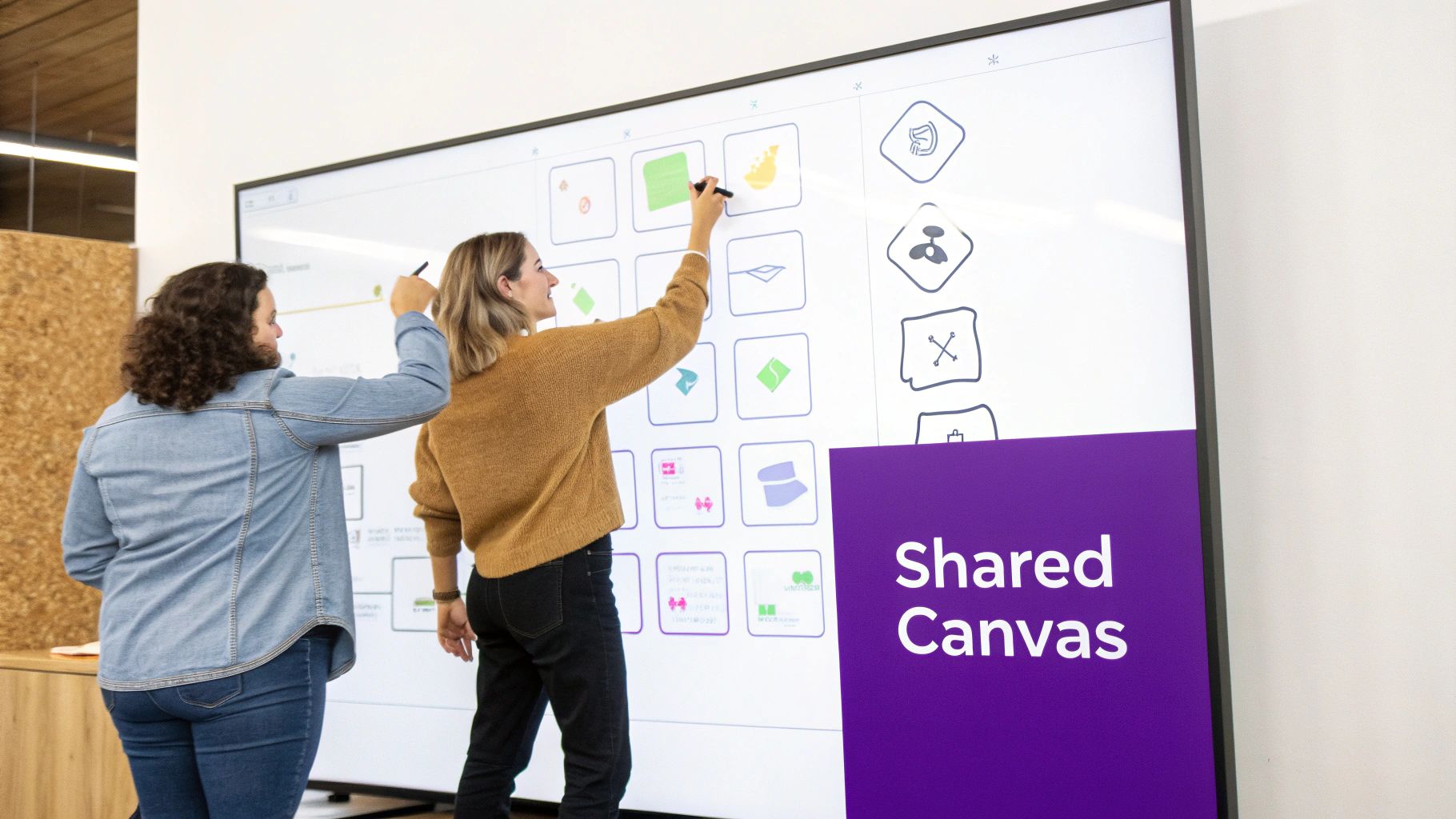
This approach is ideal for collaborative problem-solving, mind mapping, or structuring complex workflows. Platforms like Miro, MURAL, and Figma are popular for their intuitive interfaces and rich feature sets, allowing teams to turn abstract concepts into tangible plans.
How to Implement It
- Select a Platform: Choose a digital whiteboard tool that matches your team’s needs. Miro and MURAL are excellent for general brainstorming, while Figma is specialized for design thinking.
- Prepare the Canvas: Set up your board with a clear framework or template before the session. This guides contributions and keeps the activity focused.
- Invite Collaborators: Share a direct link to the board with your audience, ensuring everyone has editing permissions.
- Facilitate the Activity: Guide participants through the exercise, encouraging them to add their ideas. Use features like timers and voting to manage the flow and synthesize results.
Facilitator Tips
- Assign Unique Colors: Give each participant a specific color for their sticky notes or drawings to easily track who contributed which ideas.
- Establish Ground Rules: Set clear guidelines for how to add, move, and group items to prevent the board from becoming chaotic.
- Use Time-Boxed Sections: Break down the activity into timed phases (e.g., 5 minutes for brainstorming, 3 minutes for clustering) to maintain momentum.
To make these sessions even more engaging, discover our list of interactive whiteboard games.
3. Breakout Room Discussions with Structured Prompts
Breakout rooms divide a large virtual audience into smaller, more intimate groups to tackle specific discussion prompts or brainstorming challenges. This approach transforms a one-way presentation into a collaborative workshop, making it one of the most effective presentation interactive ideas for fostering deep engagement and diverse input. Each room is given a clear objective, ensuring conversations remain focused and productive before the full group reconvenes to share key insights.
This method is ideal for problem-solving, team ideation, or in-depth analysis of complex topics. Platforms like Zoom, Microsoft Teams, and Google Meet have integrated breakout room features, allowing facilitators to easily split participants, assign tasks, and bring everyone back together seamlessly.
How to Implement It
- Prepare Clear Prompts: Before the session, write specific, open-ended questions or challenges for each breakout group.
- Set Up the Rooms: Use your meeting software to pre-assign participants or create rooms automatically. Aim for 3-5 people per room for optimal discussion.
- Brief the Participants: Clearly explain the task, the time limit, and what you expect each group to deliver when they return (e.g., three key takeaways).
- Launch and Monitor: Open the breakout rooms and "visit" each one to check on progress and answer questions. Broadcast time reminders to keep groups on track.
- Debrief and Synthesize: Bring everyone back to the main session and have a representative from each group share their findings.
Facilitator Tips
- Assign Roles: Appoint a scribe, a time-keeper, and a spokesperson in each room to ensure structure and accountability.
- Use a Shared Workspace: Provide a link to a collaborative tool like FigJam or a shared document where each group can record their ideas in real-time.
- Rotate Team Composition: If running multiple breakout sessions, mix up the groups to cross-pollinate ideas and encourage new perspectives.
For more techniques to spark group innovation, check out these creative thinking exercises for groups.
4. Interactive Q&A and Audience Question Submissions
An interactive Q&A transforms the traditional, one-way question session into a dynamic and collaborative dialogue. Instead of just raising hands, participants submit questions digitally in real time. These submissions appear in a moderated queue where others can upvote their favorites, pushing the most relevant or pressing topics to the top. This method democratizes the Q&A, ensuring all voices are heard and priorities are clear, even in large remote groups.
This approach is one of the most powerful presentation interactive ideas for corporate town halls or complex workshops where time is limited. Tools like Slido and Airmeet allow facilitators to manage, filter, and address questions systematically, turning a potentially chaotic process into an orderly and insightful exchange.
How to Implement It
- Select a Q&A Platform: Choose a tool that supports live questions and upvoting. Slido is excellent for corporate presentations, while Zoom's Q&A widget works well for webinars.
- Introduce the Tool Early: Announce at the beginning that you'll be using a digital Q&A and encourage attendees to submit questions as they arise.
- Share the Access Link: Display a QR code or a simple link on your slides so participants can join the session from their devices.
- Dedicate Time for Answers: Reserve specific slots in your presentation to pause and address the top-voted questions from the queue.
Facilitator Tips
- Implement Upvoting for Prioritization: Use the upvote feature to democratically surface the team's most urgent questions and ensure you address what matters most.
- Enable Anonymity for Candor: Encourage more honest and difficult questions by allowing anonymous submissions, which is especially useful for sensitive topics.
- Follow Up Asynchronously: If you run out of time, commit to answering the remaining questions in a follow-up email or a shared document.
For more strategies on fostering psychological safety with this method, check out our guide on how to ask anonymous questions.
5. Interactive Gamification and Competitive Challenges
Interactive gamification turns your presentation into an engaging experience by incorporating game mechanics like points, leaderboards, and time-based challenges. This approach transforms passive listening into active competition, motivating teams to generate ideas, solve problems, or learn new concepts with heightened energy and focus. It's one of the most dynamic presentation interactive ideas for fostering a fun and productive environment.

This method is ideal for innovation sprints, training sessions, or brainstorming meetings where you want to boost participation and creative output. Platforms like Kahoot! and Miro make it easy to design quizzes, idea-generation races, or concept validation games with visible scoring that keeps everyone invested in the outcome.
How to Implement It
- Define the Game: Choose a format that fits your objective, such as a timed brainstorming race, a quiz on new material, or a pitch competition.
- Set Clear Rules: Establish transparent scoring criteria, time limits, and team structures. Let everyone know what it takes to win.
- Choose a Tool: Select a platform that supports your game. Kahoot! is great for quizzes, while Miro can be used for competitive ideation on a digital whiteboard.
- Track and Reward: Use a live leaderboard to display scores and build excitement. Acknowledge the winners and celebrate the participation of all teams.
Facilitator Tips
- Balance Competition and Collaboration: Alternate between competitive rounds and collaborative discussion to maintain team cohesion and ensure the best ideas are shared.
- Focus on Participation: Use badges or points for contributing, not just for winning. This encourages everyone to engage without fear of failure.
- Keep Stakes Low and Fun: The goal is to boost energy, not create stress. Frame the challenges as fun activities rather than high-pressure performance tests.
To implement truly engaging and competitive challenges, you can find inspiration in lists like these for the 26 Best Virtual Games To Play On Zoom.
For a deeper look into gamified exercises, see our guide to online innovation games.
6. Live Annotation and Feedback Overlays
Live annotation transforms your shared screen from a static display into a collaborative canvas. This technique allows both presenters and participants to draw, highlight, and comment directly on slides or documents in real time, making abstract concepts tangible and visual. It's one of the best presentation interactive ideas for detailed document reviews, design feedback sessions, or technical walkthroughs.
This method fosters a shared sense of ownership and active participation by allowing everyone to contribute visually. Platforms like Zoom, Microsoft Teams, and Figma have built-in annotation tools that enable participants to circle key data points, add quick notes, or use emoji reactions to express agreement, creating a rich layer of interaction over your content.
How to Implement It
- Choose a Tool: Select a platform with robust annotation features. Zoom and Microsoft Teams are great for presentations, while Figma or Miro are ideal for design and workshop collaboration.
- Enable Annotation: When sharing your screen, ensure the annotation feature is enabled for all participants. Remind them where to find the tools.
- Set Clear Ground Rules: Establish a simple system before you begin, such as using specific colors for different types of feedback (e.g., green for ideas, red for concerns).
- Guide the Interaction: Actively invite participants to mark up the screen. Ask direct questions like, "Can someone circle the part of the design that stands out most to them?"
Facilitator Tips
- Assign a Scribe: Designate one person to consolidate annotations into a summary or action items, ensuring no ideas are lost after the session.
- Use Color-Coding: Assign specific colors to individuals or feedback types to keep annotations organized and easy to decipher during the discussion.
- Pause and Review: Periodically stop to discuss the annotations that have appeared on the screen, using them to guide the conversation and address feedback immediately.
- Export for Later: Save or export the annotated screen as an image or PDF to serve as a visual record of the group’s collective feedback and decisions.
7. Asynchronous Idea Submission and Voting Threads
Asynchronous idea submission empowers remote and hybrid teams to contribute thoughtfully without the pressure of a live session. This method uses dedicated channels or platforms where participants can post ideas, comment on others' suggestions, and vote on their favorites at their own pace. It levels the playing field for introverts and team members in different time zones, ensuring all voices are heard.
This approach is one of the most inclusive presentation interactive ideas for fostering deep, well-considered feedback. Instead of immediate reactions, team members have the space to reflect, research, and build upon existing submissions, leading to higher-quality contributions. Platforms like Slack, Notion, and Discourse excel at creating these structured, threaded conversations.
How to Implement It
- Set Up the Space: Create a dedicated Slack channel, Notion database, or forum thread for the initiative.
- Provide a Template: Share a simple template for submissions to ensure consistency (e.g., Idea Title, Problem It Solves, Proposed Solution).
- Establish Deadlines: Clearly communicate a timeline with a deadline for initial submissions and a separate period for discussion and voting.
- Facilitate and Synthesize: Encourage interaction by highlighting promising ideas and then schedule a follow-up meeting to discuss the top-voted submissions.
Facilitator Tips
- Encourage Building, Not Just Posting: Prompt participants to reply in threads to enhance existing ideas rather than starting new ones.
- Use Daily Digests: Post a daily or bi-daily summary of new ideas and top-voted concepts to maintain momentum and engagement.
- Create a Voting Period: Close new submissions after a set time and open a dedicated voting window to help the team prioritize effectively.
8. Interactive Scenario Simulations and Decision Trees
Interactive scenario simulations place your team inside a hypothetical challenge where they must make a series of decisions. Each choice leads down a different path, allowing participants to explore the consequences of their actions in a safe, controlled environment. This “choose-your-own-adventure” approach is one of the most powerful presentation interactive ideas for developing critical thinking and collaborative problem-solving skills.
This method is ideal for training, strategic planning, or product ideation, where teams can test theories without real-world risks. Platforms like Twine allow for simple interactive story creation, while more advanced business simulations can model complex market dynamics.
How to Implement It
- Define a Core Challenge: Base your scenario on a realistic business problem, such as navigating a budget cut or responding to a competitor's move.
- Map Out Key Decisions: Create a simple decision tree with two to three critical choice points. Each branch should lead to a distinct, plausible outcome.
- Present the Scenario: Introduce the initial situation and the first decision point. Divide participants into breakout rooms to discuss and select their path.
- Reveal Outcomes and Debrief: Share the consequences of their choice and proceed to the next decision point. After the simulation, facilitate a group discussion to analyze the final outcome and extract key lessons.
Facilitator Tips
- Keep It Relevant: Design scenarios based on real challenges your team is currently facing to ensure the exercise is practical and engaging.
- Limit Complexity: Stick to a few main branching paths to keep the simulation focused and prevent the audience from getting overwhelmed.
- Track Decision Patterns: Note which paths different groups choose. This can reveal underlying assumptions or biases within the team's decision-making process.
- Encourage Healthy Debate: Use the scenarios to surface disagreements and create a space for constructive debate on the best course of action.
9. Live Polling with Sentiment Analysis and Trend Detection
This advanced polling method goes beyond simple voting by using AI to analyze sentiment, identify emerging trends, and detect shifts in team opinion. Instead of just seeing which option is most popular, you can see how the group feels about each idea. Real-time dashboards reveal which concepts generate excitement and which raise concerns, providing a deeper layer of feedback.
This technique is invaluable for high-stakes decision-making, product feedback sessions, or strategic planning. Tools like SurveySparrow and Qualtrics use AI-powered insights to analyze open-text responses instantly, making this one of the most powerful presentation interactive ideas for understanding nuanced team dynamics.
How to Implement It
- Select an Advanced Tool: Choose a platform with built-in sentiment analysis features, such as SurveySparrow or Qualtrics.
- Craft Open-Ended Questions: Design questions that encourage detailed, text-based responses to generate rich data for analysis. Ask "What are your concerns about this feature?" instead of "Do you like this feature?"
- Deploy the Poll: Share the poll via a link or QR code and give the audience ample time to write thoughtful responses.
- Analyze the Dashboard: As responses come in, review the sentiment dashboard to see real-time trends. Use this data to guide the conversation toward topics that are generating strong positive or negative emotions.
Facilitator Tips
- Track Sentiment Shifts: Use the analysis to see how team receptivity changes as you present different aspects of a project, helping you adjust your focus in real time.
- Identify Key Concerns: Quickly pinpoint negative sentiment to address potential roadblocks or unspoken team anxieties before they grow.
- Segment by Team: If possible, filter sentiment by department or role to uncover disagreements or differing priorities between groups.
10. Interactive Presentations with Embedded Branching and Personalization
Branching presentations create a personalized journey by adapting the content based on audience input. Instead of a linear, one-size-fits-all slideshow, this technique allows the presenter to navigate to different content paths in real-time based on the audience's interests, roles, or answers to questions. This makes it one of the most powerful presentation interactive ideas for tailoring complex information to diverse groups.
This dynamic approach ensures that each segment of your audience receives the most relevant information. For example, a sales team might see a branch focused on client acquisition strategies, while the marketing team is shown a path detailing campaign analytics. Tools like Prezi, Genially, and Articulate Storyline excel at creating these non-linear, adaptive experiences that keep participants engaged.
How to Implement It
- Map Your Content: Before building, outline your core message and then map out all possible branches. Identify the key decision points where the audience will choose their path.
- Choose a Tool: Select a platform that supports non-linear navigation. Prezi is great for visual "zoom and reveal" paths, while Articulate Storyline is ideal for complex training scenarios.
- Create Branching Points: Build interactive elements like clickable buttons, poll questions, or role-selection menus directly into your slides to serve as navigation triggers.
- Test and Rehearse: Thoroughly test every possible path to ensure all links work and the transitions are smooth. Practice navigating the different branches so you can lead the session confidently.
Facilitator Tips
- Start with a Common Trunk: Begin with a shared introduction to orient everyone before splitting into different content branches.
- Keep Branches Focused: Limit each branch to a specific topic and keep the depth to a maximum of two or three levels to avoid confusing the audience.
- Reconverge for Key Takeaways: Bring all audience members back to a common "master" path to discuss shared conclusions or the next steps. This ensures everyone leaves with a unified message.
- Use Clear Visual Cues: Make it obvious when a branching choice is coming up. Use icons, distinct colors, or clear on-screen text to guide participants.
10-Point Comparison of Interactive Presentation Ideas
| Tool / Method | Implementation Complexity 🔄 | Resource & Technical Requirements ⚡ | Expected Outcomes ⭐📊 | Ideal Use Cases 💡 | Key Advantages ⭐ |
|---|---|---|---|---|---|
| Live Polling and Real-Time Voting | Low–Medium 🔄 — quick setup, simple flows | Low ⚡ — web/mobile tools, minimal training | High ⭐ — immediate engagement; measurable results 📊 | Quick decisions, pulse checks, large presentations | Rapid feedback; anonymity reduces participation anxiety |
| Interactive Whiteboarding & Collaborative Canvas | Medium 🔄 — templates & facilitation needed | Medium ⚡ — subscription tools, larger screens helpful | High ⭐ — rich visual artifacts; better idea organization 📊 | Design sprints, mapping, cross-functional workshops | Supports visual thinking; captures contributions for reuse |
| Breakout Room Discussions with Structured Prompts | Medium–High 🔄 — requires active facilitation | Medium ⚡ — host controls, facilitators, timers | High ⭐ — deeper discussion; more voices heard 📊 | Large-group ideation, focused problem-solving segments | Encourages quieter contributors; enables parallel exploration |
| Interactive Q&A & Audience Question Submissions | Low–Medium 🔄 — queueing & moderation workflow | Low ⚡ — basic Q&A tools, moderation effort | Medium ⭐ — clarifies gaps; surfaces priorities 📊 | Webinars, expert panels, workshops needing clarifications | Prevents monopolization; reveals real concerns and knowledge gaps |
| Interactive Gamification & Competitive Challenges | Medium 🔄 — rules and scoring design | Medium–High ⚡ — gamification platform, rewards, monitoring | High ⭐ — boosts energy and participation; variable idea quality 📊 | Energizers, hackathons, engagement-focused sessions | Increases motivation and retention; makes sessions memorable |
| Live Annotation & Feedback Overlays | Low–Medium 🔄 — coordination rules recommended | Low ⚡ — built-in annotation in meeting tools | Medium–High ⭐ — clearer emphasis; real-time reactions 📊 | Design reviews, demos, slide walkthroughs | Visual clarity and concurrent feedback without interrupting flow |
| Asynchronous Idea Submission & Voting Threads | Low 🔄 — setup templates and cadence | Low ⚡ — channels/forums, moderation for momentum | Medium ⭐ — thoughtful, documented contributions 📊 | Distributed teams, time-zoneed ideation, sustained projects | Inclusive, reflective input with archival traceability |
| Interactive Scenario Simulations & Decision Trees | High 🔄 — scenario design and facilitation complex | High ⚡ — simulation tools, design time, role assignments | High ⭐ — reveals decision patterns; experiential learning 📊 | Strategic planning, risk testing, training exercises | Safe exploration of consequences; surfaces biases and trade-offs |
| Live Polling with Sentiment Analysis & Trend Detection | High 🔄 — analytics design and interpretation | High ⚡ — AI/NLP tools, integrations, data privacy controls | Very High ⭐ — actionable insights; trend and sentiment tracking 📊 | Change initiatives, large stakeholder sessions, trend sensing | Detects shifting opinions, uncovers nuanced signals beyond votes |
| Interactive Presentations with Branching & Personalization | High 🔄 — complex content mapping and testing | High ⚡ — authoring tools, strong facilitation, QA | High ⭐ — tailored relevance; improved engagement for segments 📊 | Role-based training, adaptive learning, stakeholder-specific briefings | Delivers personalized paths; responds dynamically to audience input |
From Interaction to Innovation: Your Next Steps
We've explored a powerful arsenal of ten distinct presentation interactive ideas, moving far beyond the static, one-way monologues that define so many virtual meetings. From the immediate feedback loop of live polling to the deep, structured collaboration of breakout rooms and the dynamic pathways of branching scenarios, the common thread is clear: interaction is the engine of engagement. Passive listening is no longer enough for distributed teams that need to innovate and solve complex problems. True collaboration requires active participation, and the techniques covered in this article are your practical blueprints for making that happen.
The journey from a passive audience to an active group of contributors isn't about simply adding a fun activity. It’s about a strategic shift in how you design and deliver information. Each of these ideas serves a specific purpose, whether it's to democratize participation, uncover hidden assumptions, or build consensus in real time. By thoughtfully selecting and implementing these methods, you are not just making your presentations more interesting; you are building a more inclusive, psychologically safe, and ultimately more effective collaborative environment.
Your Action Plan for Interactive Mastery
Transforming your presentations won't happen overnight. The key is to start small, build momentum, and create a new standard for what a productive meeting looks like. Here is a simple, actionable path forward:
-
Step 1: Choose Your Starting Point. Don't try to implement everything at once. Review the list of presentation interactive ideas and select just one or two that align with the goals of your next meeting. Is your objective to gather quick feedback? Start with Live Polling. Do you need to brainstorm a complex solution? An Interactive Whiteboard is your best bet.
-
Step 2: Prepare and Communicate. The success of any interactive element hinges on preparation. Set up your tools in advance, create your prompts, and most importantly, let your audience know what to expect. A simple heads-up like, "In our call tomorrow, we'll be using breakout rooms for a quick 10-minute brainstorm," can significantly increase participation.
-
Step 3: Iterate and Gather Feedback. After your meeting, reflect on what worked and what didn’t. Ask your team for their honest feedback. Was the activity clear? Did it feel valuable? Use these insights to refine your approach for the next session. Continuous improvement is crucial.
Ultimately, mastering these presentation interactive ideas is about more than just holding better meetings. It's about unlocking the collective intelligence of your team. In a remote or hybrid setting, intentional, structured interaction is the most powerful tool you have to ensure every voice is heard, every idea is considered, and your team’s best work can come to the surface. By moving from passive presentations to active collaboration, you are laying the groundwork for genuine innovation.
Ready to take the guesswork out of creative collaboration? Bulby provides a library of research-backed, AI-powered exercises that embed these interactive principles directly into a guided workflow. Start fostering breakthrough ideas in your next workshop by exploring what Bulby can do for your team.