
Before you even think about opening a slide deck, the real work of creating a great interactive presentation begins. It’s a mindset shift. You’re not preparing a lecture; you're designing a two-way conversation. The secret is to plan for participation from the very start by understanding your audience, building a solid narrative, and then choosing the right moments to invite them in with polls, Q&As, or collaborative activities.
Building Your Foundation for Audience Engagement
Most people jump straight into designing slides. That’s a mistake. The foundation of an engaging presentation isn't built in PowerPoint or Keynote; it's built on strategy. This is where you go beyond just listing facts and start creating an experience that actually connects with your audience. Skipping this step is precisely why so many presentations fall flat and fail to keep people focused.
This isn’t just a passing trend—it's a fundamental change in how we communicate. The presentation software market, valued at $7.84 billion, is expected to skyrocket to $36.41 billion by 2034. That huge jump tells us one thing loud and clear: audiences are hungry for more than just static slides. They want experiences.
Define Your Core Objective
What do you really want people to do when you're finished talking? "Informing the team" isn't a strong enough goal. A truly effective objective is specific, measurable, and pushes for action. Are you trying to get them to sign up for a demo? Adopt a new process? Feel genuinely excited about a project's future?
Let's look at the difference:
- Weak Objective: To inform the team about Q3 sales numbers.
- Strong Objective: To have the team identify three key opportunities from the Q3 sales data that we can act on next month.
See the difference? The strong objective immediately turns a data dump into a collaborative problem-solving session. It gives every interactive element you plan a clear purpose.
Create a Detailed Audience Profile
You absolutely have to know who you're talking to. A room full of busy executives needs a quick, high-level summary with crystal-clear takeaways. A team of engineers, on the other hand, will probably want to get into the weeds and discuss the technical specifics.
Ask yourself a few key questions to build a clear profile:
- What do they actually do all day? What are their main responsibilities?
- How much do they already know about this topic? Are they beginners or experts?
- What are their biggest headaches related to this subject?
- What gets them excited? Are they moved by hard data, compelling stories, or the impact on the bottom line?
Answering these questions helps you customize not just your content, but also the type of interaction you use. To really nail this, check out our deep dive on https://www.remotesparks.com/how-to-make-a-presentation-interesting/.
"A presentation is a performance. It’s not a data dump. It’s a story, a journey you take your audience on. Your job is to be their guide, not their lecturer."
Map Out Your Narrative Arc
Even the most technical presentation can be a story. Think about it: you introduce a challenge (the problem), you explore its impact (building tension), and then you guide everyone to a satisfying conclusion (your solution). It’s a classic story structure, and it works.
This narrative arc gives you a natural roadmap for your interactive moments. For example, you could kick things off with a poll to show everyone they're facing a shared challenge. Then, use a collaborative whiteboard during the "exploration" phase for brainstorming. Finally, wrap up with a Q&A session to make sure the solution feels solid and agreed upon.
This approach borrows from the principles of experiential marketing, where the focus is on creating immersive moments. By weaving your interactive elements into the story, they feel essential, not like random interruptions.
Choosing the Right Tools for Maximum Interaction
The right tech can make or break your presentation, turning a one-sided lecture into a lively, two-way conversation. But with a sea of options out there, it’s easy to get overwhelmed. The secret? Stop looking for one perfect tool. Instead, match your software to the specific kind of interaction you want to create.
Think about it: the tool you pick directly shapes how your audience gets involved. Do you just need a quick poll to see if everyone’s on the same page? Or are you aiming for a full-blown brainstorming session on a digital whiteboard? The slick, high-stakes software you'd use for a sales pitch is completely different from what you'd need for an internal training that requires quizzes to track progress.
Before you even think about software, you need a solid foundation. It all comes back to your audience, your core goal, and the story you're telling.
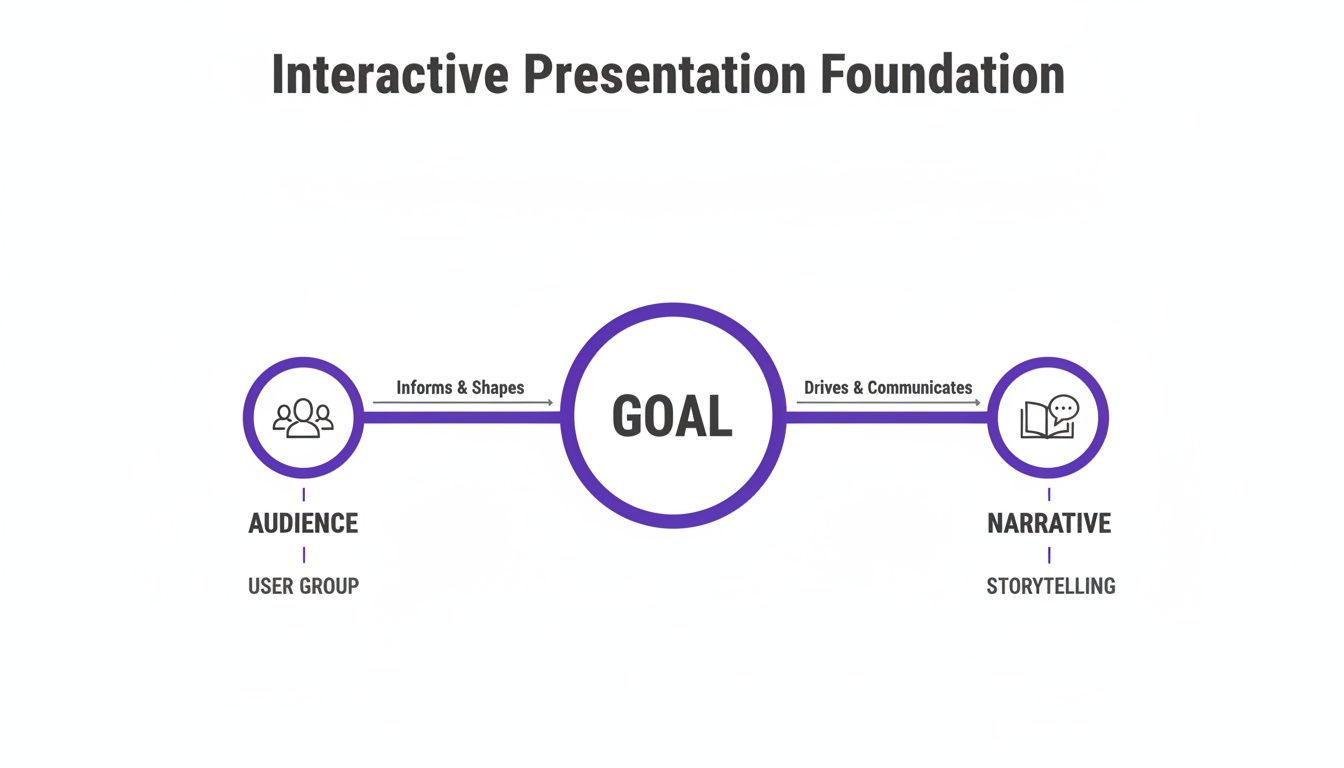
This simple diagram is a great reminder that your tools should always serve your strategy—not the other way around.
Tools for Live Polling and Q&A
Sometimes, you just need a quick pulse-check. Live polling and Q&A tools are perfect for this. They break up long stretches of talking and give your audience a voice, which is fantastic for keeping energy levels up. All it takes is a simple link or QR code for people to join in.
Instead of saving all the questions for the end—which can really kill the momentum—you can sprinkle these little interactive moments throughout your talk. This simple shift turns a passive listening experience into an active one. And the data backs this up: research shows the information retention rate from a standard lecture is a dismal 5%. That number skyrockets to 50% when you introduce group discussion.
A couple of my go-to's are:
- Mentimeter: It's a crowd favorite for a reason. You can create beautiful live polls, word clouds, and quick quizzes that update on screen in real time. It's brilliant for gathering opinions on the fly without derailing your presentation.
- Slido: This one integrates beautifully with PowerPoint and Google Slides. Its real power is in managing Q&A sessions. Attendees can submit and upvote questions, letting you focus on what the audience is most curious about.
Platforms for Collaborative Brainstorming
When you need to move past simple questions and get your team’s hands dirty, you'll need something with more muscle. This is where digital whiteboards and visual collaboration platforms shine. They give everyone a shared space to dump ideas, organize thoughts, and solve problems together.
These are the tools that make a presentation feel genuinely collaborative, especially for remote teams. They level the playing field, so everyone gets a chance to contribute—not just the loudest person in the virtual room. If your team is trying to get more creative, digging into some of these collaboration tools for distributed teams can be a game-changer.
"A slide deck is, at its core, a one-way conversation meant only to inform. Real business conversations are two-way, and there are much better methods for involving customers in co-creating a path forward."
Software for Non-Linear and Branching Paths
We’re all used to the traditional slide deck: you click from slide 1 to 2 to 3. It's linear and predictable. But what if you could let your audience choose their own adventure?
Non-linear presentation tools let you do just that by creating branching paths. The audience’s choices dictate what content they see next, making the entire experience feel more personal and relevant. Imagine a sales demo where you ask the prospect which feature they want to explore first, or a training where new hires can jump straight to the module that matters most to their role.
Two great platforms for this are:
- Prezi: Famous for its zoomable canvas, Prezi breaks you out of the slide-by-slide prison. It allows for a much more fluid, story-driven presentation that can move and zoom to different topics based on audience input.
- Genially: A really versatile tool for creating all sorts of interactive content. You can build presentations with clickable elements, hidden information, and complex branching scenarios.
To help you choose the right software for the job, I’ve put together a quick comparison of some popular options based on their interactive features and best use cases.
Interactive Presentation Tool Feature Comparison
| Tool | Key Interactive Feature | Best For | Collaboration Level | Price Model |
|---|---|---|---|---|
| Mentimeter | Live polls, word clouds, Q&A | Gathering instant feedback, audience pulse-checks | Low-Medium | Freemium, Pro, Enterprise |
| Slido | Q&A management, polling, quizzes | Moderated Q&A, conference engagement | Low-Medium | Freemium, Paid plans |
| Miro | Infinite digital whiteboard | Deep brainstorming, workshops, agile rituals | High | Freemium, Paid plans |
| Mural | Guided visual collaboration | Facilitated workshops, design thinking | High | Freemium, Paid plans |
| Prezi | Zooming canvas, non-linear paths | Storytelling, "choose your own adventure" | Low | Subscription |
| Genially | Clickable hotspots, branching | Gamified training, self-guided content | Low | Freemium, Paid plans |
Ultimately, the best tool is the one that helps you connect with your audience and achieve your specific goal. Don't be afraid to experiment with a few different platforms to find the one that feels right for you and your team.
Designing Your Interactive Elements
Alright, this is where the magic happens. We've laid the groundwork with planning and strategy, and now it's time to build the actual interactive moments that will make your presentation memorable. The goal isn't just to tack on a poll here or a Q&A there; it's to weave these elements so seamlessly into your narrative that they feel like a natural part of the conversation.
Think of it this way: every interaction should serve a purpose and respect your audience's time. This hands-on approach is what separates a presentation that just holds attention from one that actively builds a connection with everyone in the virtual room.
Writing Polls That Ignite Discussion
Anyone can ask a "yes or no" question. But writing a poll that actually sparks a meaningful discussion? That’s a different skill entirely. A generic poll gets you a click; a thoughtful one gets people thinking and talking.
My advice is to steer clear of simple "yes/no" questions unless you're just doing a quick headcount. Instead, try framing questions to uncover different perspectives or highlight a common challenge. This simple shift turns a passive vote into a moment of shared discovery.
Let's look at an example:
- Weak Poll: "Do you find our current workflow challenging?" (This just begs for a 'yes' or 'no'.)
- Strong Poll: "Which part of our current workflow causes the most friction for you?" (Options: A. Handoffs, B. Reporting, C. Planning, D. Other)
The second poll gives you immediate, valuable data. You can then say, "Wow, it looks like 45% of us are struggling with handoffs. Let's dig into that for a minute." See the difference? The poll becomes a perfect, data-driven segue into your next point.
Setting Up and Moderating Live Q&A
Leaving all your questions for a big Q&A session at the very end is a classic mistake. By then, people have forgotten their earlier questions, and the energy in the room has often dipped. A much better approach is to sprinkle shorter Q&A bursts throughout your talk.
After you finish a key section, just pause. Open the floor for two or three questions specifically about what you just covered. This keeps people engaged and ensures their questions get answered while the topic is still top of mind.
A few tips for running this smoothly with a remote team:
- Use a Q&A Tool: Platforms like Slido are fantastic for this. Attendees can submit questions and, more importantly, upvote others' questions. It's a democratic way to see what the group is most curious about.
- Bring in a Moderator: If you can, ask a colleague to help you out. They can keep an eye on incoming questions, group similar ones, and feed you the top-voted ones. This lets you focus on presenting, not multitasking.
- Acknowledge Everyone: You might not get to every single question live. That's okay. Just make sure people feel heard. A quick, "I see a great question from Sarah about our budget—I'll follow up directly after this session," goes a long way.
Designing Branching Presentations
Most presentations follow a straight line from A to B to C. They’re predictable. A branching, or non-linear, presentation hands the controls over to your audience, letting them decide where to go next. It’s a "choose your own adventure" for your content.
This is incredibly effective for things like sales demos. Instead of marching through your features in a pre-set order, you could start with a simple question: "What's your team's biggest priority right now?"
- Improving Efficiency
- Reducing Costs
- Scaling Operations
When they click their choice, you jump directly to the part of your presentation that speaks to their specific need. It instantly makes the entire experience feel more relevant and personal, which is a huge win for engagement.
By incorporating elements like live polls and Q&A sessions, you can better understand the customer’s needs and tailor your pitch to address their specific pain points. This personalization makes prospects feel heard and understood, building trust and confidence in your solution.
Guided Brainstorming with Digital Whiteboards
This is one of my favorite techniques because it fundamentally changes the dynamic. You stop presenting to your audience and start solving a problem with them. Digital whiteboards are perfect for this, and it’s a core concept behind how tools like Bulby facilitate team collaboration.
Instead of showing a slide that says, "Here's our problem," you invite everyone onto a shared canvas like Miro or Mural. Then, you guide them through a structured brainstorming session.
Here’s a simple but powerful workflow I use all the time:
- Frame the Challenge: Put the core problem right on the whiteboard. (e.g., "How can we improve our customer onboarding experience?")
- Silent Brainstorming (3-5 mins): Give everyone a few minutes to add their ideas on digital sticky notes. The key here is silence—it prevents groupthink and gives quieter team members a chance to contribute equally.
- Group and Theme (5 mins): Now, as a group, start dragging and dropping related stickies together to form clusters.
- Dot Voting (2 mins): Give each person three virtual "dots" to vote on the ideas they think have the most potential.
In about ten minutes, you've turned a passive audience into active collaborators and walked away with a set of prioritized, actionable ideas. If you're looking for more ways to get your audience involved, check out this guide on interactive exercises for presentations.
Embedding Media Without Breaking Flow
Finally, don't let a technical glitch derail your momentum. Nothing kills the vibe of a great interactive presentation faster than a video that won't play or a link that goes nowhere.
Always, always, always test your embedded media in "presentation mode" before you go live. Make sure your videos play as intended and that any clickable links or documents load correctly.
Here’s a pro tip: whenever possible, embed videos directly into your presentation slides rather than linking out to YouTube or another website. It creates a far more seamless and professional experience, keeping your audience focused on you and your message.
Mastering Your Delivery as a Facilitator
The single biggest shift you can make for a killer interactive presentation is to stop thinking like a speaker and start acting like a facilitator. A speaker talks at people. A facilitator sparks a conversation with them.
This isn’t just semantics; it's a completely different mindset. In a remote session, you can't read the body language in the room, so your role becomes even more critical. You're the guide, the moderator, and the person responsible for keeping the energy up. This means you need a game plan for the human dynamics, not just your slide deck.
Create Your Facilitator Script
Don't let the word "script" scare you. This isn't about reading lines from a teleprompter. Think of it more like a director's screenplay or a pilot's pre-flight checklist. Your facilitator script is a map that lays out the entire flow of your presentation, noting both your key points and your interactive cues.
For each major part of your talk, I recommend jotting down:
- The Main Idea: Just the core concept you need to get across.
- Interaction Cue: A clear prompt for yourself, like "Launch Poll #2 now" or "Drop the Miro board link in the chat."
- Time Allotment: A realistic estimate for how long the segment and the interaction will take.
- Transition Line: A simple phrase to bridge the gap to the next topic after you're done.
This script is your co-pilot. It keeps you on track so you don't forget that brilliant poll you planned, and it frees you up to focus on the audience instead of worrying about what's next.
A solid facilitator script is your safety net. It gives you the confidence to be present and react in the moment because you know you have a clear structure to fall back on.
Manage the Pace and Timing
One of the trickiest parts of an interactive session is managing the clock. You have to build in enough breathing room for people to think and contribute without letting the momentum die. It’s a real balancing act.
A good rule of thumb I've learned is to allocate roughly twice as much time for an interactive bit as you think you'll need. If you're running a quick poll, don't just flash the results and speed on. Plan for a minute or two to actually talk about what you're seeing. For something beefier, like a collaborative whiteboard brainstorm, you might need to block out a full 10-15 minutes.
And remember, silence isn't your enemy. When you ask a question, give people a moment to actually process it before jumping in to fill the void. That quiet time is even more crucial in a virtual setting.
Reading the Digital Room
In a real room, you can see people nodding along or glazing over. Online, the signals are much more subtle, but they're there if you know where to look. Getting good at this is a huge part of great remote facilitation. If you want to go deeper, our guide on how to facilitate meetings is packed with tips on managing online group dynamics.
Here are a few things I always watch for:
- Chat Activity: Is it a ghost town, or are people dropping in reactions, questions, and side comments? A lively chat is a fantastic sign of engagement.
- Camera Cues: If people have their cameras on, look for the non-verbals. Nods, smiles, and even furrowed brows are gold.
- Participation Patterns: Who’s talking and who isn't? I make a mental note to gently create an opening for quieter folks. A simple, "Sarah, I’d love to get your take on this," can make all the difference.
This is where the right tech can be a game-changer. Interactive displays are turning passive screens into collaborative canvases. This market is exploding, hitting $41.95 billion in 2022 and projected to reach $86.44 billion by 2030. A huge driver is education—over 40% of K-12 classrooms in the U.S. now use them, leading to a reported 25% jump in student participation. You can read more on this trend over at Fortune Business Insights.
Handling Tech Glitches with Grace
Let's be real: no matter how much you prepare, technology will fail you at some point. A link will break, a poll will refuse to launch, or someone’s audio will go haywire. The key is not to panic.
How you handle these moments can actually build more trust with your audience.
Always have a backup for every interactive element. If your polling tool dies, be ready to ask for a show of hands or a quick answer in the chat. If a video won't play, calmly describe what it was about and promise to share the link later. Acknowledge the hiccup, maybe with a little humor, and move on. People will remember your calm confidence far more than the minor tech issue.
Testing Your Presentation and Measuring Success
You've designed a killer interactive presentation. It's packed with polls, Q&A, and collaborative boards. But all that work can fall flat if a technical glitch pops up or you have no way to know if it actually worked. This final phase—testing and measuring—is what separates a memorable presentation from a frustrating one.
It’s less about avoiding disaster and more about proving that your interactive approach made a real difference.

Think of this as your dress rehearsal. It’s your chance to smooth out any rough patches and make sure every interactive element works flawlessly. When you're confident in your tech, you can focus on what really matters: connecting with your audience.
Your Pre-Flight Checklist
Never, ever go live without a dry run. Seriously. Grab a colleague and have them act as an attendee. They’ll see things from a different perspective and catch hiccups you might have missed.
Here’s what to check:
- The Tech: Is your Wi-Fi solid? Do you have the right permissions to share your screen in Zoom or Teams? Check for any last-minute software updates that could throw a wrench in your plans.
- Your Audio/Video: Hop into the platform you'll be using and test your mic and camera. A quick "can you hear and see me okay?" with a teammate saves a lot of awkwardness later.
- The Interactive Bits: This is the big one. Click every single link. Launch every poll. Play every video. Make sure your collaborative board is set so everyone can actually participate, not just view.
Troubleshooting Common Problems
Even with perfect prep, things go wrong. A backup plan is your best friend. It helps you stay cool and in control instead of panicking.
Here are a few classic issues and how to handle them on the fly:
| Problem | Primary Solution | Backup Plan |
|---|---|---|
| Poll Won't Launch | Refresh the tool or your browser. | "Looks like the poll is being stubborn! Let's do this the old-fashioned way. Please type your answer—A, B, or C—into the chat." |
| Video Refuses to Play | Make sure the video is embedded, not just linked. | "It seems my video isn't cooperating. I'll drop the link in the chat for you to watch later and will quickly summarize the key point." |
| Attendee Can't Join Whiteboard | Double-check that sharing permissions are set to "anyone with the link can edit." | Have a simple alternative ready, like asking for ideas in the chat that you can add to the board on their behalf. |
The goal isn't to be perfect; it's to be prepared. When you have a backup for every interactive element, you can handle any glitch with grace and keep the presentation moving forward.
How to Measure Real Engagement
Did your presentation actually land? Success is more than just counting who showed up. You need to dig into the data to see what truly resonated with your audience. This is how you'll make your next presentation even better.
In the corporate world, data is everything. Some studies show that 70% of teams get better results when they use interactive tools. As noted by Fortune Business Insights, the technology behind this is getting smarter, with some tools even embedding AI to track where attention is highest.
To get a real sense of your impact, focus on these metrics:
- Poll Response Rates: What percentage of your audience actually voted? A high response rate usually means people were paying attention. Even more valuable is looking at how they answered—did they grasp the key concept you were polling about?
- Quality of Q&A: Don’t just count the questions. Look at what people were asking. Were they insightful, clarifying questions that showed deep thinking? That's a much better sign of engagement than a flood of basic queries.
- Click-Throughs on Resources: If you shared links to articles, demos, or other resources, did anyone click them? This is a direct signal that you successfully motivated them to take the next step.
- Post-Presentation Feedback: Generic surveys are fine, but dedicated event feedback forms are better. Ask specific questions like, "Which interactive element did you find most helpful?" to get actionable feedback you can actually use.
And don't underestimate the power of a simple conversation. Kicking off your next team sync with a few quick check-in meeting questions about the presentation can give you the kind of honest, qualitative insights that you’ll never find in a spreadsheet.
Answering Your Top Questions About Interactive Presentations
Even the most seasoned presenters run into a few common hangups when building interactive sessions. It's one thing to plan it all out, but another to execute it live. Let's walk through some of the questions I hear most often and tackle them with real-world advice.
Getting these details right is often what separates a good presentation from one that people are still talking about weeks later.
How Do You Engage a Quiet Audience?
Ah, the sound of silence. You ask a question, and all you get back is a sea of blank stares on your screen. It’s every presenter's nightmare, but it’s totally avoidable.
The trick is to warm people up with low-stakes interactions. Don't dive straight into a big, open-ended question that puts someone on the spot. Instead, start small. An anonymous poll, a "raise hand" feature, or a simple "type one word in the chat" prompt gives everyone an easy, safe way to participate.
Also, think about how you're phrasing your questions. "Any questions?" almost always gets you silence. A more inviting prompt like, "What's one thing that stands out to you so far?" feels much more conversational and less like a pop quiz. And when someone does speak up, give them some positive reinforcement. A simple, "Great point, Sarah, thanks for sharing that" can make all the difference in encouraging others to chime in.
What’s a Good Number of Interactive Elements?
It’s tempting to pack your presentation with every bell and whistle, but more isn't always better. Too many interruptions can break the flow and feel chaotic, while too few will have your audience quietly checking their email.
So, what's the magic number? I've found that for a typical 30-minute presentation, aiming for a meaningful interactive moment every 7-10 minutes is the sweet spot. That usually means three or four well-placed activities. Maybe a poll to start, a quick Q&A after a major point, and a collaborative brainstorm before wrapping up.
The goal is always quality over quantity. Every poll, quiz, or breakout room should have a purpose. Ask yourself: is this helping them understand, giving me valuable feedback, or just filling time? If it doesn't serve a clear goal, cut it.
Can I Make a Presentation Interactive Without Special Software?
Absolutely. Fancy tools are great, but you don't need a budget to create a genuinely engaging experience. The most powerful tool you have is your own mindset—shifting from "presenter" to "facilitator" is the real game-changer.
You can get incredibly creative with the tools you already have:
- The Humble Chat Box: The chat in Zoom, Microsoft Teams, or Google Meet is your best friend. Use it for quick questions, collecting ideas, or even running an informal "vote with an emoji" poll.
- Internal Slide Linking: In PowerPoint or Google Slides, you can create a "choose your own adventure" presentation. Just link from one slide to another and let the audience vote on which topic to dive into next.
- Just Ask: Seriously, the most underrated technique is to simply pause, ask for thoughts, and then actually listen. The core of interaction isn't the tech; it's the conversation.
Ready to turn passive listeners into active collaborators? Bulby provides a guided, step-by-step approach to brainstorming that ensures every voice is heard, helping your remote team generate better ideas, faster. See how it works at https://www.bulby.com.